
AbleSet
The Setlist Editor
To edit the order of songs and make other changes to your setlist, open the setlist editor by clicking the edit button at the bottom right of the setlist.
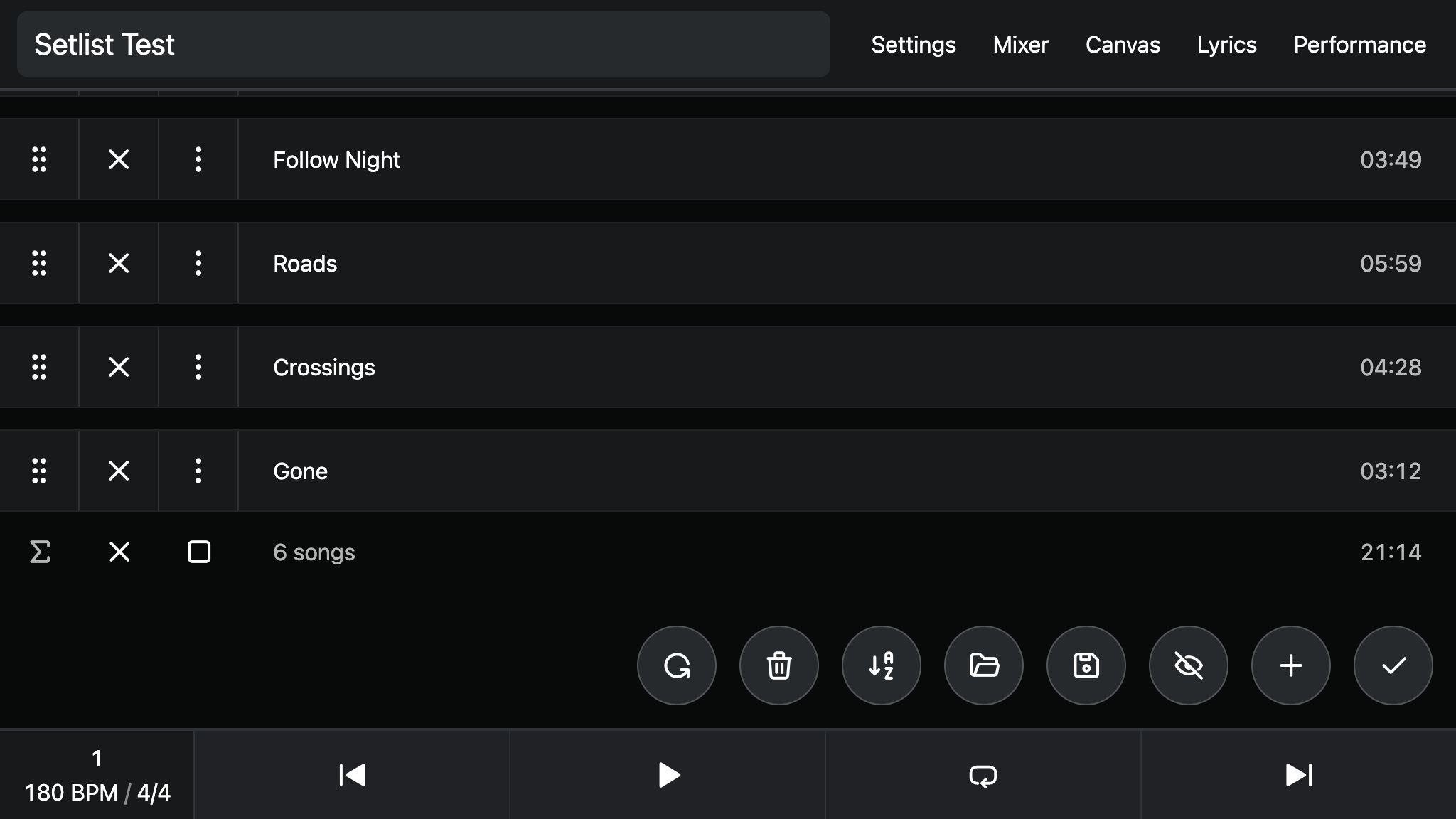
The setlist editor allows you to drag songs around by their handles on the left
to change their order, or remove songs by clicking the x button next to the
song's title. On smaller devices, the x button is hidden to save space and you
can remove songs by swiping them to the left.
Removed songs are just greyed-out by default, but you can hide them by clicking the eye button at the bottom right or by pressing ⇧ H. This view is closer to what you'll see after you exit the setlist editor.
If you'd like to remove all songs, click the x button below the last song.
This gives you a clean slate to start building your setlist. Click it again
to add all songs to your setlist. To the right of that button, you'll also
see the setlist's total duration.
When you're done editing your setlist, press the check button on the bottom right to save your changes and exit the editor. The current setlist is stored as part of your Ableton Live project, so make sure to save it as well when you close it.
Adding Songs
To add new songs to your setlist, click the + button at the bottom right or
press ⌘ K. This opens a search bar that lets you find songs and add them to
the end of your setlist.
You can either search for songs by their name, their description, or their tags. Searching by tags also allows you to add all songs with the same tag at once.
The search function is fairly flexible, so you can also search for songs by their initials or by parts of their title.
Song Details
To edit a song's details, click the three-dot button next to the song title or right-click the song. This opens a popover with a list of options you can modify:
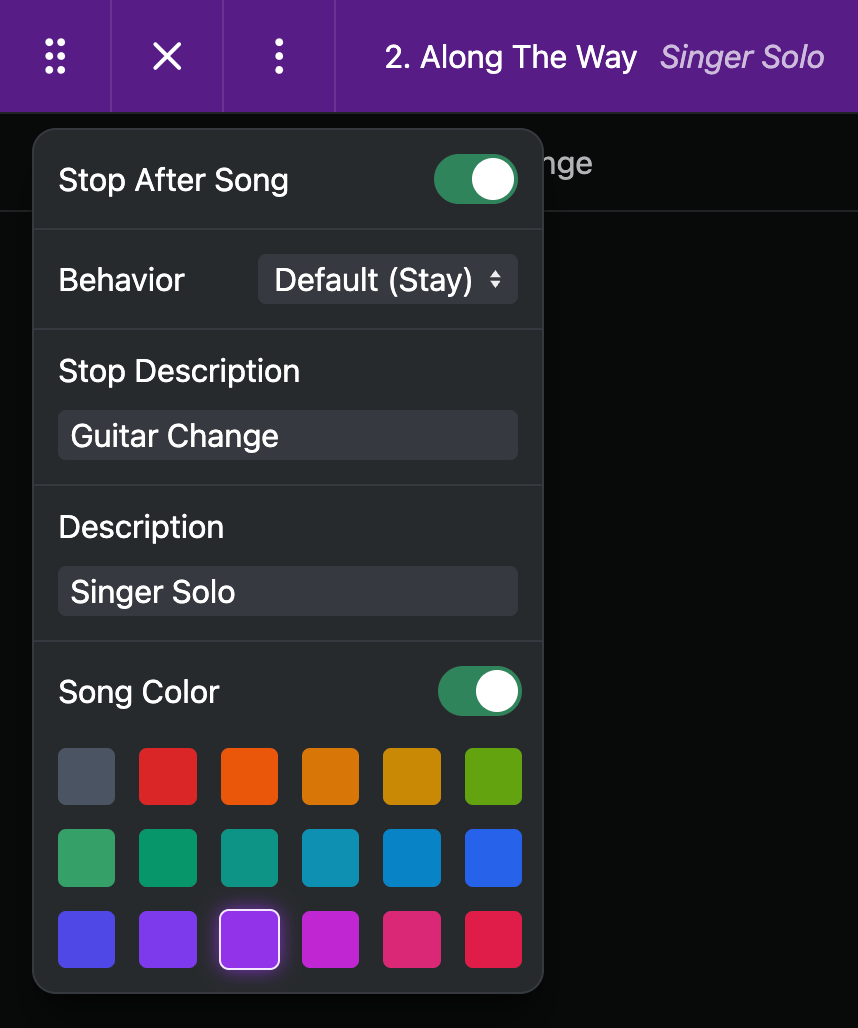
These options override the details you set up in your project's locators and are stored with your setlist.
Saving and Loading Setlists
To save a setlist, click the Save button at the bottom of the editor or press ⇧ S. This opens an overlay that lets you choose a name and save it.
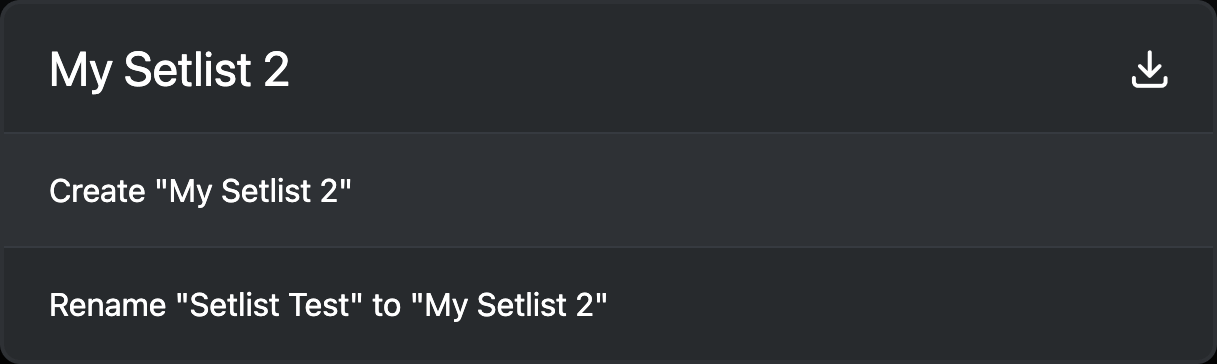
The download button at the right of the dialog lets you download the current setlist as a JSON file. This is a legacy feature and not really needed anymore since AbleSet already takes care of file management.
Saved setlists are stored as files in your Ableton Live project folder.
To load a setlist, click the Open button to the left of the save button or press ⇧ O. This shows you a list of all previously saved setlists and allows you to search for the one you'd like to open.
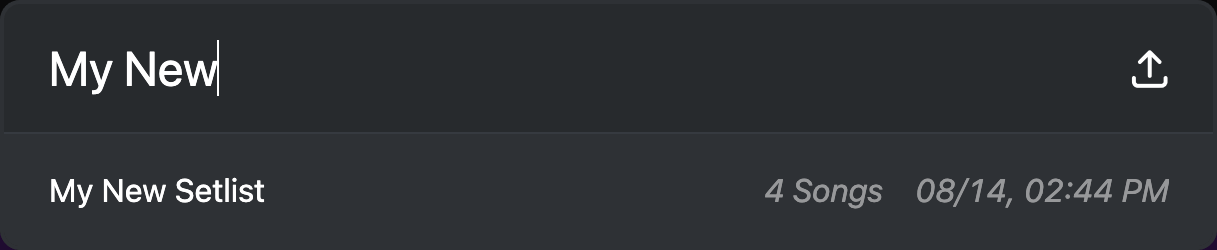
Please note that opening a setlist overrides the current setlist, so make sure you've save your changes before if you don't want to lose them.
The upload button on the right lets you import a setlist from a file.
Copying and Pasting Setlists
If you'd like to send the current setlist to someone else, press ⌘ C to copy it to your clipboard. This will copy all song titles, one song per line.
This works the other way around, too. To import a setlist from somewhere else, press ⌘ V. The song titles don't have to match the ones in your project exactly, AbleSet automatically finds songs based on the closest match.
If you're on mobile or don't have access to a keyboard, you can also open the Load Setlist dialog and paste your setlist into the search field to import it.
If you're using song or stop descriptions, these are copied to your clipboard as well, so a copied setlist might look like this:
I've Got Lost
Along The Way {Ab}
-- Announce Album release --
Roads {Shaker Intro}
Interlude
This works the other way around as well, so when you paste a setlist from your
clipboard, text in curly braces ({}) next to a song title is added as a song
description and text surrounded by two dashes on its own line is added as a stop
description for the song above it.
Importing Setlist Files
To import a setlist, click the Open button on the bottom right, and then click the upload icon to open a file picker. In addition to AbleSet's own file format, the importer supports Strange Electronic's SETLIST file format, so you can easily import those setlists as well.
You can also import text files containing a list of songs.
In addition to using the upload button, you can also drag these files directly into the setlist editor to import them.
Printing Setlists
To print your setlist, open the print dialog by pressing ⌘ P or selecting "Print" in your browser's menu bar. You can then either print the setlist directly or save it as a PDF:
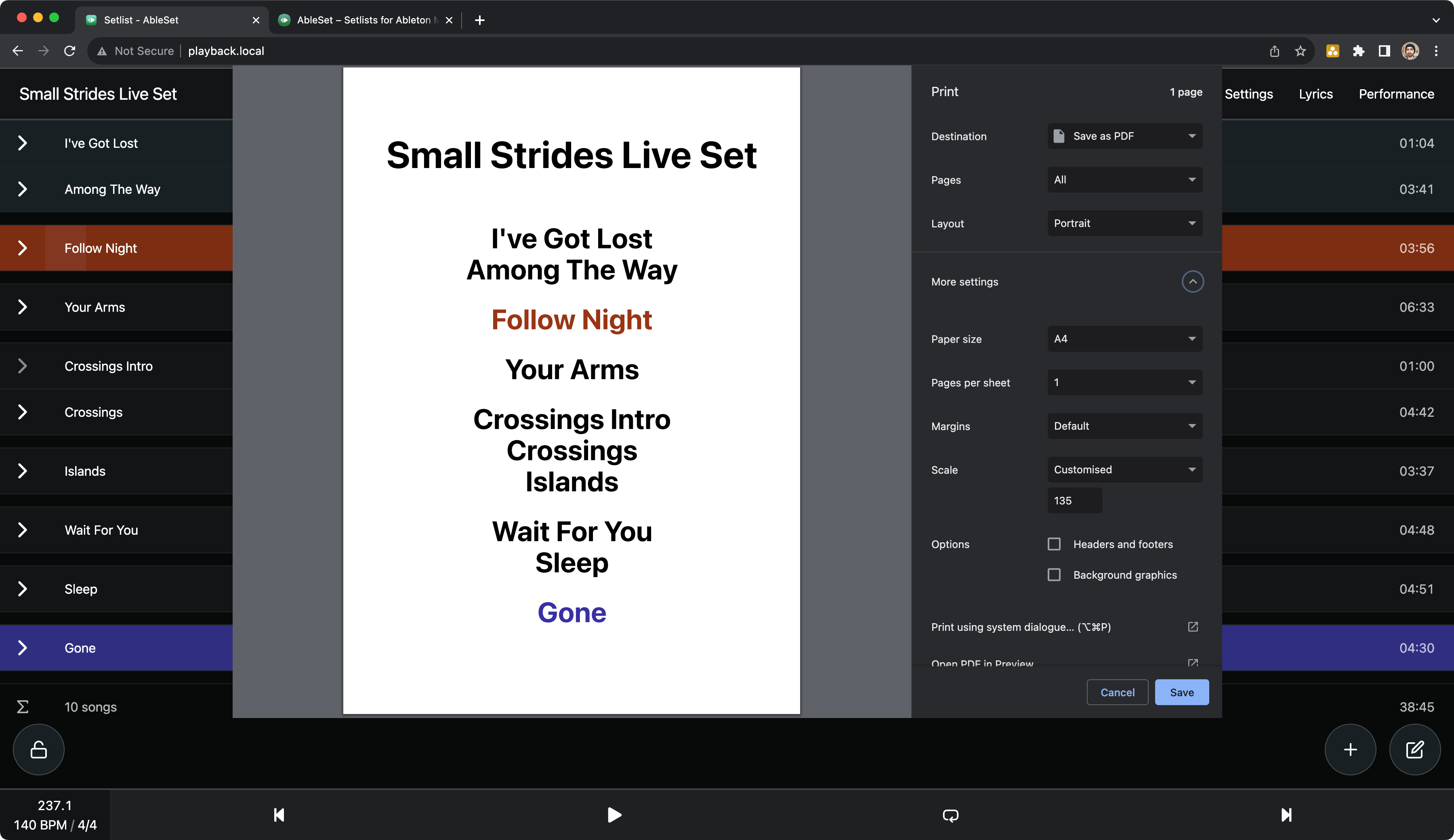
Song colors are included in the printed setlist.
I'd recommend using Chrome, Edge, or Opera to print your setlists as those give you more options to customize the size and page layout of the printed setlist, but Safari should generally work as well.
This page was last modified on 2026-04-23