
AbleSet
OSC Tracks
AbleSet allows you to send timed OSC commands from a MIDI track. These commands can either be sent to AbleSet or external apps or devices that support OSC – for example TouchOSC, audio consoles, light desks or video players.
To get started, create a new MIDI track and make sure that its name contains
+OSC, e.g. AbleSet +OSC. All clips placed on this track will now trigger
OSC commands that you add to their name as soon as Live's playhead reaches them.
By default, OSC commands are sent to AbleSet. You can find a list of all available OSC commands here. For example, to trigger a big notification on all connected devices, you can create a clip with the following command:
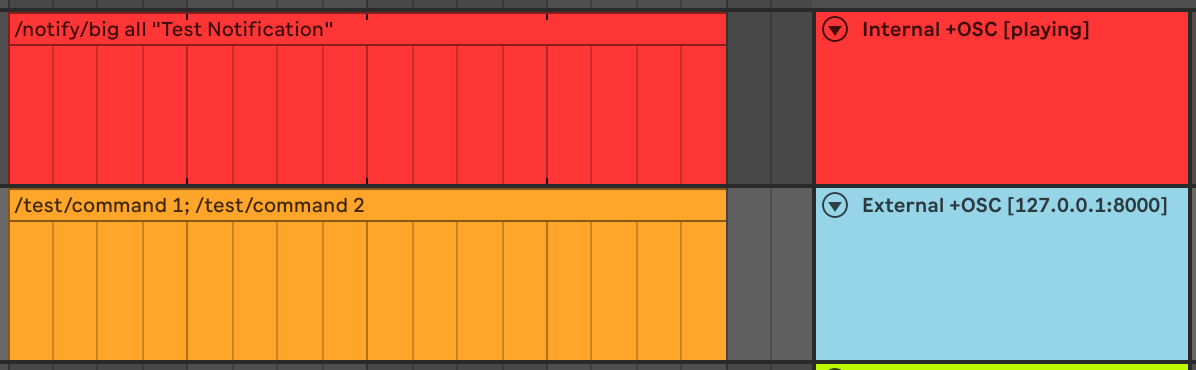
To send OSC commands to external apps or devices, you can add their
IP or hostname and port to the OSC command, e.g. 192.168.1.5:3000/scene 2.
Multiple commands can be separated by semicolons. If you'd like to add a delay
between two commands, you can use the //sleep command. For example, to wait
2.5 seconds between stopping and jumping to the next song:
/global/stop; //sleep 2500; /setlist/jumpBySongs 1
You can find a list of all control flow statements here.
Available Attributes
The behavior of OSC tracks can be altered using attributes on the track name.
If you'd like all OSC commands to be sent to a specific target, you can add it
to the track name in square brackets, e.g. External +OSC [192.168.1.25:3000].
You can also set a prefix which is added to each OSC command. For example, if
you'd like to create an OSC track that triggers notifications in AbleSet, you
can add a prefix in square brackets, e.g. Notify +OSC [/notify/big all].
This prefix can contain multiple arguments and you can specify multiple
arguments in the MIDI clips on this track. So, for example, if a clip on this
track was named Test 1000, the command sent to AbleSet would be
/notify/big all Test 1000 which would make the text "Test" appear on screen
for 1000 ms.
If you'd like AbleSet to interpret the name of clips as a single argument
instead, add the [single] attribute to the track name in addition to the
prefix. With this in place, if a clip on the track was named Test 1000,
the command sent to AbleSet would be /notify/big all "Test 1000".
To specify where arguments from clips should be placed, you can use a ?
placeholder. For example, if you use the attribute [/notify/big all ? 1000],
a clip called Test would trigger the command /notify/big all Test 1000. If a
clip contains multiple arguments, these will all be placed at the position of
the placeholder.
You can use the placeholder in multiple places, even in multiple commands:
[/notify/big stage ?; /notify/toast foh ?]
To access the color of the current clip as a placeholder, use ?cc. If your
track uses the attribute [/notify/big all ? 1000 ?cc] and the playhead reaches
a green clip named Test, AbleSet will send /notify/big all Test 1000 green,
leading to a green "Test" notification being displayed on all devices.
If you'd like AbleSet to treat ? or ?cc as a string instead of a placeholder,
wrap it in quotes: [/notify/big all "?" 1000] sends the question mark as a
string instead of replacing it with the arguments from the current clip.
You can also combine the prefix attribute with the target attribute, e.g.
External +OSC [192.168.1.25:3000/fxsend/mix].
To send OSC commands only while Live is playing, add the [playing] attribute
to the track name.
To send a default OSC command when the playhead reaches an empty space between
clips, you can use the following attribute: [?? default], where default is
the name of the default clip. This value can be an OSC address or a value used
for the placeholder.
OSC Syntax
Each OSC command starts with an address followed by an optional list of
arguments, which is separated by spaces, e.g. /notify/big all Test.
AbleSet automatically detects integer, float, and boolean arguments, so
/test 10 1.5 true would send a /test OSC command with an integer, a float,
and a boolean argument. All other arguments are interpreted as strings, so
/test hello would send a /test OSC command with a string argument.
If you'd like AbleSet to interpret an argument as a string, or if a string
argument needs to contain spaces, you can wrap it in quotes. For example,
/test "true" "Test Message" would send a /test OSC command with two string
arguments – "true" and "Test Message".
You can use either ", ', or ` as quotes. If you'd like to
use the quote character you used to define the string inside the string as well,
you can escape it using a backslash, e.g. "Some \"quotes\" in a string".
This page was last modified on 2026-05-31