
AbleSet
Mixer: Creating and Controlling Track Groups
AbleSet supports creating and controlling track groups. These can consist of multiple tracks and can be controlled on the fly from the web app or via OSC.
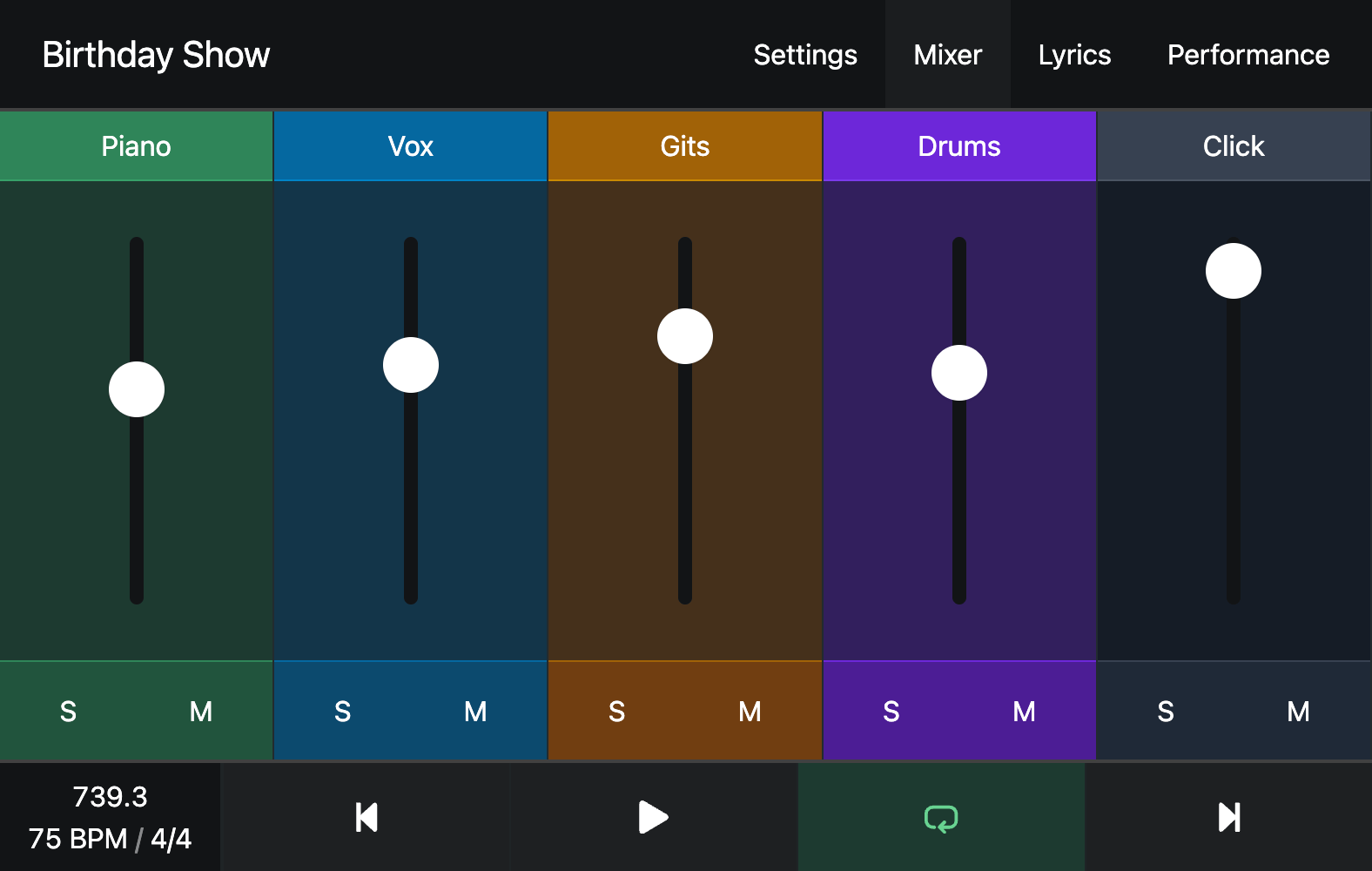
If you have tracks named Click or containing +CLICK, those are automatically
added to a "Click" group. To create other groups, add +G: or +GROUP: followed
by the name of the group you'd like the track to belong to to the track's name,
for example: +G:VOX.
Please note that the group name must be written in UPPERCASE and can only
contain letters, digits, dashes, and underscores. Underscores are displayed as
spaces, so +G:GIT_1 is displayed as "Git 1".
Tracks can belong to multiple groups, so you could assign a track both to a VOX
and to a BACKINGS group (e.g. Vox 1 +G:VOX +G:BACKINGS), while another track
is assigned to a BASS and the same BACKINGS group
(e.g. Synth Bass +G:BASS +G:BACKINGS). This allows you, for example, to mute
both tracks at once using the BACKINGS group while still being able to mute
them individually using their own groups.
The +NEVERMUTE Flag
Some tracks should never be muted – for example, if they output a control signal
to a redundant audio interface. By adding the +NEVERMUTE or +NM flag to the
name of those tracks, AbleSet ensures that they will always be audible. When you
solo a track group, all +NEVERMUTE tracks are soloed as well.
Using the Mixer With Multi-File Projects
When you're working with Multi-File Projects, you might want to keep your Mixer state when jumping between songs. To do this, enable the Sync Group Solos & Mutes Between Songs option on the Settings page.
If you'd also like to transfer the volumes of all groups, enable the Sync Group Volumes Between Songs option.
Tracks in Collapsed Groups
If some of the tracks are placed in groups in Ableton, make sure those groups are expanded. Live doesn't report meter levels for tracks in collapsed groups so you won't see meter levels in AbleSet for those.
This page was last modified on 2026-05-31