
AbleSet
Canvas
Canvas expands on what you can do with Performance View and allows you to create completely custom views using a range of elements that you can freely place on your screen. Canvases can either be stored in your project or globally.
When you first create a canvas, you're presented with an empty area and a sidebar which contains settings for the canvas and selected elements.
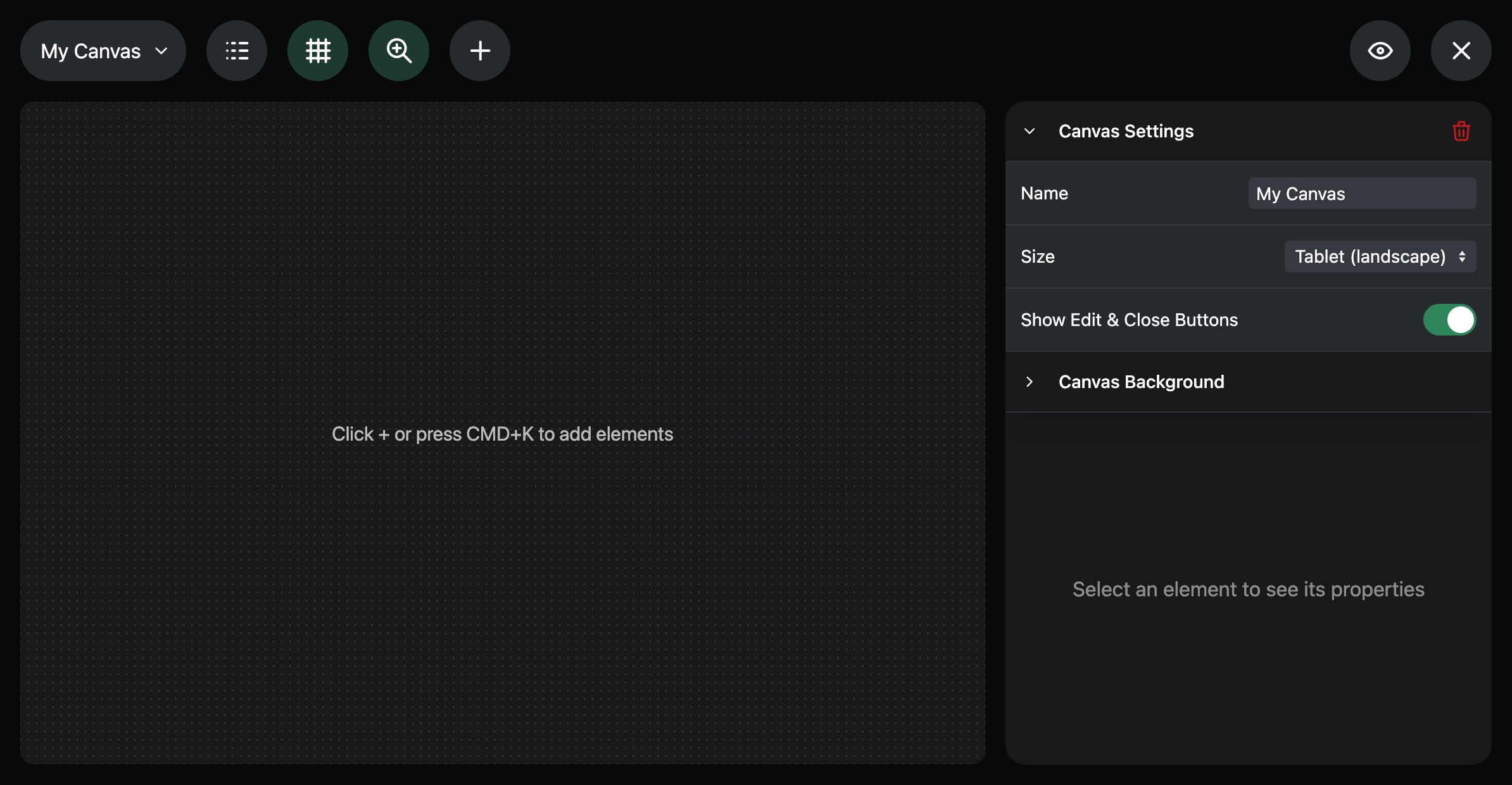
To get started, click the + button or press ⌘ K to open a list of
available elements. Below these, you'll see a list of presets which are
pre-configured elements you can add to your canvas.
If you're using Canvas for the first time, I'd recommend starting with some elements and presets and modifying them to your liking. You can find a list of all available elements and presets below.
Available Elements
Audio Interfaces
This element displays the status of connected audio interfaces. You can configure which audio interfaces you'd like to see.
Button
Buttons are one of the most flexible elements on the canvas. They can either send OSC commands or run scripts when pressed and released, or they can act as links to other pages, either internally or externally.
You can add a label and an icon, and choose a text and background color.
The "Highlight Active Link" setting automatically gives the button a lighter background color when the link is currently active. This can be useful for building links that switch between different Canvases.
Clock
This element shows the current time. You can choose whether you want it to display the time in 12 or 24 hour format and whether it should show seconds. You can also change its color.
Current Measure
This element shows the current measure, either from a Measure Track or from other sources.
If AbleSet doesn't have access to the current measure, it will only display the current beat instead.
You can choose whether you want to show the current beat next to the measure and change its color.
Divider
Dividers allow you to separate elements from each other or act as headings for groups of elements. You can specify an optional title and change its color.
Embed
This element allows you to display an external website within the canvas. This might be a timer from Ontime or the status page of an audio interface in your network.
You can choose whether you want to allow interaction with the embedded page and add a background color if you like.
Image
The image element allows you to upload and display any image. You can choose whether the image should fit into the element or scale to fill it completely.
Uploaded images are stored in the Canvas/Resources folder in your project's
AbleSet Folder, and you can also add images to your
canvas by moving them there. Subfolders are supported.
You can also add images to the canvas by dragging them into your browser. This adds the image to your resources folder and creates an image element with it.
Input Field
Input fields can be used for text input. You can choose between four types – Text, Number, Email Address, and Multiline, depending on your needs, and add a placeholder text that is visible when the Input Field is empty.
If you specify a linked variable, the value of the input is always kept in-sync with that variable. Alternatively, you can use the Value field to specify a value, with support for templating.
When the Value changes, e.g. because one of the variables referenced in the templating changes, the Input's value is overridden with the new value.
You can run scripts on change and when pressing ⏎. These scripts can
access the Input's current value using the value variable.
Label
This element displays text with support for templating. You can choose text and background colors based on your needs.
Lyrics
The Lyrics element displays synchronized lyrics from a lyrics track of your choice. You can select the track and choose whether you want to see section descriptions and the name of the next song after the last lyrics line.
Use the "Transpose Chords" setting to dynamically transpose chords using a template. The "Line Override" setting allows you to dynamically set the highlighted line independently of the playhead position.
The "Delay" setting allows you to offset the timing of the lyrics, e.g. to compensate for network or display latency.
Panel
This element automatically moves into the background and offers another way to visually group other elements. You can choose a background color.
Setlist
The Setlist element shows your setlist. View settings are currently the same as on the Setlist page, so make any adjustments there.
Slider
This element allows you to set a number by dragging a Slider. You can choose its orientation (vertical/horizontal) and its style (Thumb & Bar, Thumb, or Bar) and add a label and background as you like.
By default, when you drag the Slider, it moves relative to your cursor or finger from where you started. This allows you more granular control on touch screens, but if you prefer the Slider to snap to your cursor or finger, enable the Snap to Pointer setting.
As with Input Fields, if you specify a linked variable, the value of the Slider is always kept in-sync with that variable. Alternatively, you can use the Value field to specify a value, with support for templating.
When the Value changes, e.g. because one of the variables referenced in the templating changes, the Slider's value is overridden with the new value.
The Minimum Value, Maximum Value, and Value Step options allow you to
specify a range and granularity for the Slider. If you want an on/off switch
style, set the Minimum Value to 0, the Maximum Value to 1, and the
Value Step to 1 as well.
You can run scripts when the value changes and when you release the Slider after
moving it. You can access the Slider's value using the value variable.
Additionally, you can access the Slider's Minimum Value, Maximum Value,
and Value Step using the min, max, and step variables.
For an example on how you can use a Slider, check out the Click Track Volume Slider.
Song Progress
This is a progress bar that shows the song's current progress and allows you to jump to sections by clicking the respective part of the progress bar.
You can choose between a pill-shaped or box-shaped style and enable section colors and section names depending on your preferences.
Section Progress
This element shows the progress of the current section. You can choose between a pill-shaped or box-shaped style. By default, it uses the color of the current section, but you can override it by setting a Background Color.
Timecode
The Timecode element displays the decoded timecode from the LTC Display Max for Live device. If you don't have the device in your project yet, you can download it from the Settings page.
You can choose whether to display the frame rate and set a Background Color and Text Color.
Visual Metronome
This element displays a Visual Metronome. By default, it uses the color of the current section, but you can override it by setting a Text Color. You can also choose a Background Color if you like.
Available Presets
Play/Pause Button
This is a Button that allows you to start or pause playback and reflects the current playback state in its color and icon.
Play/Stop Button
This is a Button that allows you to start or stop playback and reflects the current playback state in its color and icon.
Play Button
This is a Button that allows you to start playback if it's currently stopped and reflects the current playback state in its color.
Pause Button
This is a Button that allows you to pause playback if it's currently playing and reflects the current playback state in its color.
Stop Button
This is a Button that allows you to stop playback if it's currently playing and reflects the current playback state in its color.
Record Button
This is a Button that allows you to start recording and reflects the current recording state in its color and icon.
Loop Button
This Button allows you to enable and escape loops and reflects the current state in its color.
Next Song Button
This Button allows you to jump to the next song and fades when the last song is reached.
Previous Song Button
This Button allows you to jump to the previous song and fades when the first song is reached.
GO Button
This Button behaves the same as the Go Button in MIDI Mapping and reflects the current playback state in its color.
Current Song Title
This Label displays the current song's title. Its color changes based on the color of the current song and the playback state.
Next Song Title
This Label displays the next song's title. Its color changes based on the color of the next song and the playback state.
Current Section Title
This Label displays the title of the current section. Its color changes based on the color of the current section and the playback state.
Next Section Title
This Label displays the title of the next section. Its color changes based on the color of the next section and the playback state.
Time Signature
This Label displays the current time signature.
Remaining Time in Song
This Label displays the remaining time in the current song, in minutes and seconds.
Remaining Time in Set
This Label displays the remaining time in the setlist, in minutes and seconds.
Click Track Volume Slider
This Slider allows you to see and control the volume of the click track. You can modify it to control other track groups as well.
Click Track Solo Toggle
This button allows you to solo and unsolo the click track and reflects the solo state in its color.
Click Track Mute Toggle
This button allows you to mute and unmute the click track and reflects the mute state in its color.
Estimated Set End Time
This label displays the time when the set will likely end, based on the current time and the remaining set time.
Templating
Many of the elements' settings can be set dynamically using templating. The simplest example is a Label which can display a templated value.
Templates are basically text with dynamically populated parts. These parts start
with ${ and end with }. The content of these parts is written in JavaScript,
similar to other scripting in AbleSet.
The result of any JavaScript expression is inserted into the template, for example:
The Sum: ${10 + 15}
This expression would evaluate to "The Sum: 25". To display the name of the next song, you could use this template:
Next: ${osc("/setlist/nextSongName")}
When accessing OSC variables, you get autocomplete as soon as you type ${osc("
in the template field. You can see a list of all available functions
here.
Templated (Dynamic) Colors
Every color setting can make use of the same templating syntax by
enabling the Dynamic toggle. These templates should either evaluate to a
color name (e.g. green, red, etc.), a color name and shade (e.g. green-900,
red-800, indigo-500), or a hex color (e.g. #2f855a).
For example, to make a text use the color of the current song, use this template:
${osc("/setlist/activeSongColor")}
You can also combine template expressions to add color shades. For example, if you want the song color to be brighter during playback:
${osc("/setlist/activeSongColor")}-${osc("/global/isPlaying") ? 600 : 700}
Or if you want the a color to blink along with the metronome:
green-${
  osc("/global/isPlaying")
    ? osc("/global/beatsPosition") % 2 === 0 ? 600 : 700
    : 900
}
The shade needs to be either 50, 100, 200, 300, 400, 500, 600,
700, 800, 900, or 950, with 50 being the brightest and 950 being the
darkest color.
Visibility Condition
This setting is available for all elements and allows you to specify a template that can dynamically show or hide them.
When one or more elements are hidden, the editor will show a Ghost button that allows you to either hide hidden elements completely or display them slightly transparently. This setting only applies to the editor, hidden elements are always completely hidden in the Canvas viewer.
Local & Linked Variables
Local Variables are only stored in your browser but shared between all Canvases, and can optionally be persisted between reloads and browser restarts. You can use them for any values you only need temporarily and that don't need to be shared between different devices.
If you want to share values between devices, take a look at Shared Variables.
Local Variables can be accessed in scripts and bound to elements like Input Fields and Sliders by adding them to the Linked Variable field.
When a Local Variable is bound to an element, AbleSet automatically synchronizes it with the value of that element, so any changes to the element update the variable and any changes to the variable update the element.
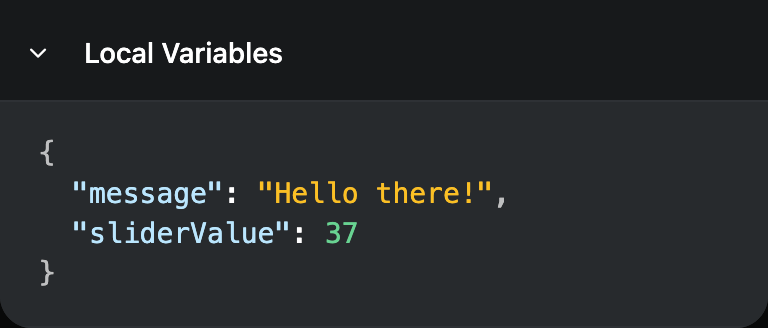
When Local Variables are used, you can inspect their current values using the Local Variables element at the bottom of the editor's sidebar:
Examples
The possibilities are endless, but here are a few examples of things you can add to your Canvas. You can find more examples and shared Canvases on the AbleSet Forum.
Buttons to Switch Between Canvases
Buttons can act as links which allows you to build a kind of pager for switching between Canvases. To create a Button that links to another Canvas, first switch to the target canvas and make a note of its URL in your browser.
The URL should end in something like /canvas/canvas-name or
/canvas/canvas-name/edit. In the latter case, remove the /edit part.
Now, go back to the previous Canvas and create a new Button, set its
type to "Link", and enter the path of the other Canvas, e.g.
/canvas/canvas-name. Clicking this Button now opens the linked Canvas.
Broadcasting a Message
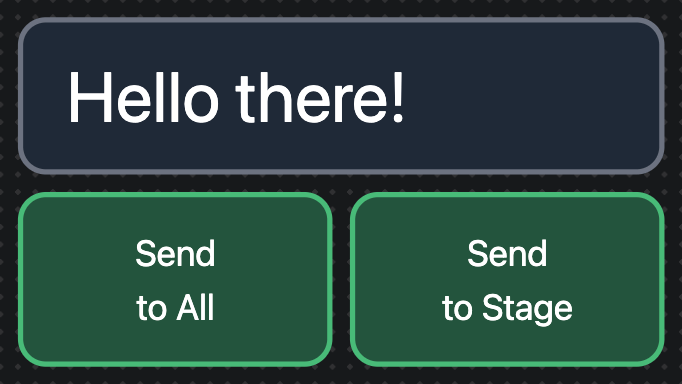
To broadcast a message to different devices, create an
Input Field element and set its Linked Variable to message.
Then, add Buttons for each group of devices you want to broadcast messages to. Set the Button Type to "Script" and enter the following Script on Press:
sendOsc("/notify/big", "all", local("message"));
You can replace "all" with other device identifiers, e.g. "stage" or "singer". To learn more about available device-specific OSC commands, check out the Device Control docs.
Now, when you press the button, the targeted devices will display the message you entered in full-screen.
If you'd like to clear the Input Field after the message has been sent, add the following line to the script:
setLocal("message", "");
You can add the same script to the Input Field's Script on Enter script as well to send the message each time you press ⏎.
Displaying a Countdown
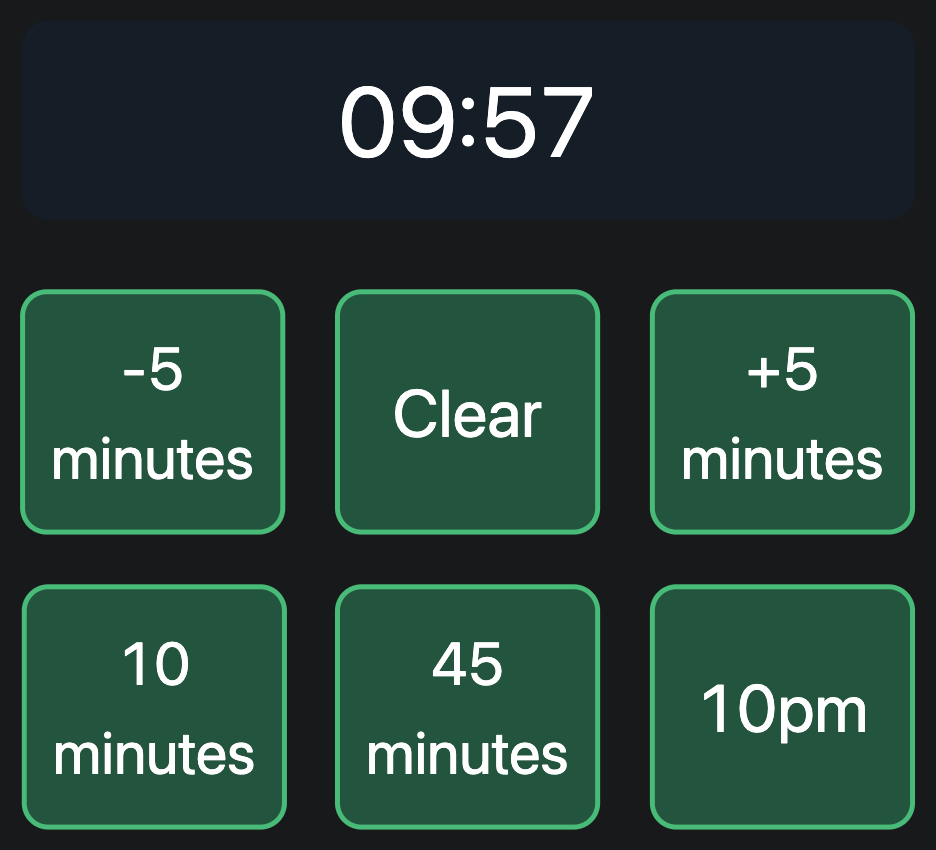
This could be nice to keep track of remaining time on stage. First, create a Label, give it a background color and increase the font size to your liking.
We'll use a Shared Variable to store the
timestamp of when the countdown should end. In this example, I'll call it
timerEnd. The timestamp is a number which is stored in milliseconds.
We could use a Local Variable for this as well, but using a Shared Variable allows us to display the same countdown on other devices as well.
To display the remaining time, set the Label to the following template:
${formatDuration((shared("timerEnd") - now()) / 1000)}
This takes the difference between the current time and the timerEnd timestamp
and divides it by 1000 to get the remaining time in seconds, then passes it into
formatDuration to generate a nicer looking duration like 10:35 or 01:23:45.
We haven't stored a timestamp in timerEnd yet, so this Label will be empty for
now. To set timerEnd, let's create a Button, set its Label to
10 minutes and its Button Type to "Script".
Then, we'll set the Script on Press to the following:
setShared("timerEnd", now() + 10 * 60 * 1000);
This calculates the timestamp 10 minutes from now and stores it in the Shared Variable. Since timestamps are stored in milliseconds, we convert the 10 minutes to milliseconds as well by multiplying it by 60 and 1000.
Pressing this button now starts a 10-minute countdown, or resets it to 10 minutes if one is already running.
To add time to the countdown, let's add another button called "+5 minutes", set the Button Type to "Script" as well and enter the following Script on Press:
if (shared("timerEnd")) {
  setShared("timerEnd", shared("timerEnd") + 5 * 60 * 1000);
}
This checks if a timer is active and then adds 5 minutes to the timerEnd
timestamp. To subtract time instead, just change the + to a -.
We can also set timerEnd to a specific time like 10pm. To do this, let's
create another Button called 10pm, set its Button Type to "Script" as well and
enter the following Script on Press:
const date = new Date();
date.setHours(22, 0, 0, 0);
setShared("timerEnd", date.getTime());
This creates a new Date object,
which is set to the current timestamp by default. To change the time of that
timestamp, we call date.setHours with 22 hours (10pm), 0 minutes, 0 seconds,
and 0 milliseconds. We then store that timestamp in timerEnd.
And to clear the countdown, let's create an additional script Button and set its Script on Press to the following:
resetShared("timerEnd");
Additionally, we can style the countdown conditionally. For example, we could change its background color to yellow when only 5 minutes or less remain. To do that, switch the Label's Background Color to "Dynamic" and set it to the following value:
${shared("timerEnd") - now() < 5 * 60 * 1000 ? "yellow" : "gray"}
Displaying the Expected End of Set Time
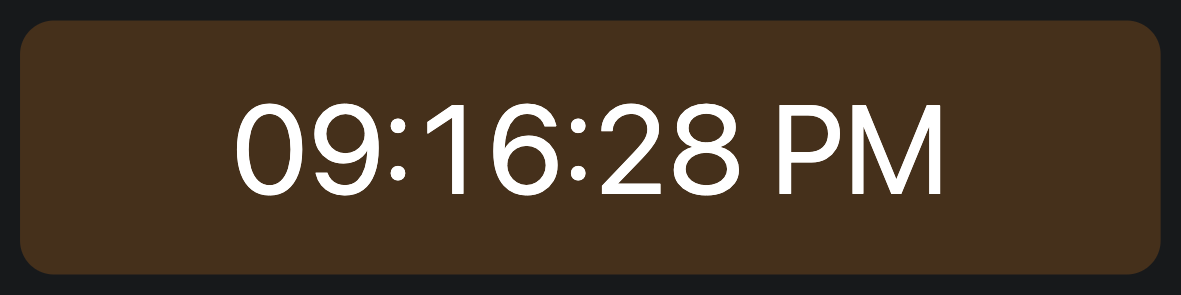
To display the time your set will end, we can use a Label. Give it a nice background if you like and set its value to the following:
${new Date(now() + osc("/setlist/remainingTimeInSet") * 1000).toLocaleTimeString()}
This calculates the timestamp your set will end by getting the current timestamp
in milliseconds and adding the remaining time, which needs to be converted from
seconds to milliseconds. It then converts that Date to a human-readable time
using toLocaleTimeString.
This page was last modified on 2026-09-08